
How Digital Inspections Are Conducted
A step-by-step guide on how the Eswatini Secondary Inspectorate conducts inspections using the digital inspection system. This guide covers registration, login, submitting reports, viewing reports, and communication between inspectors and schools.
The Digital Inspection System
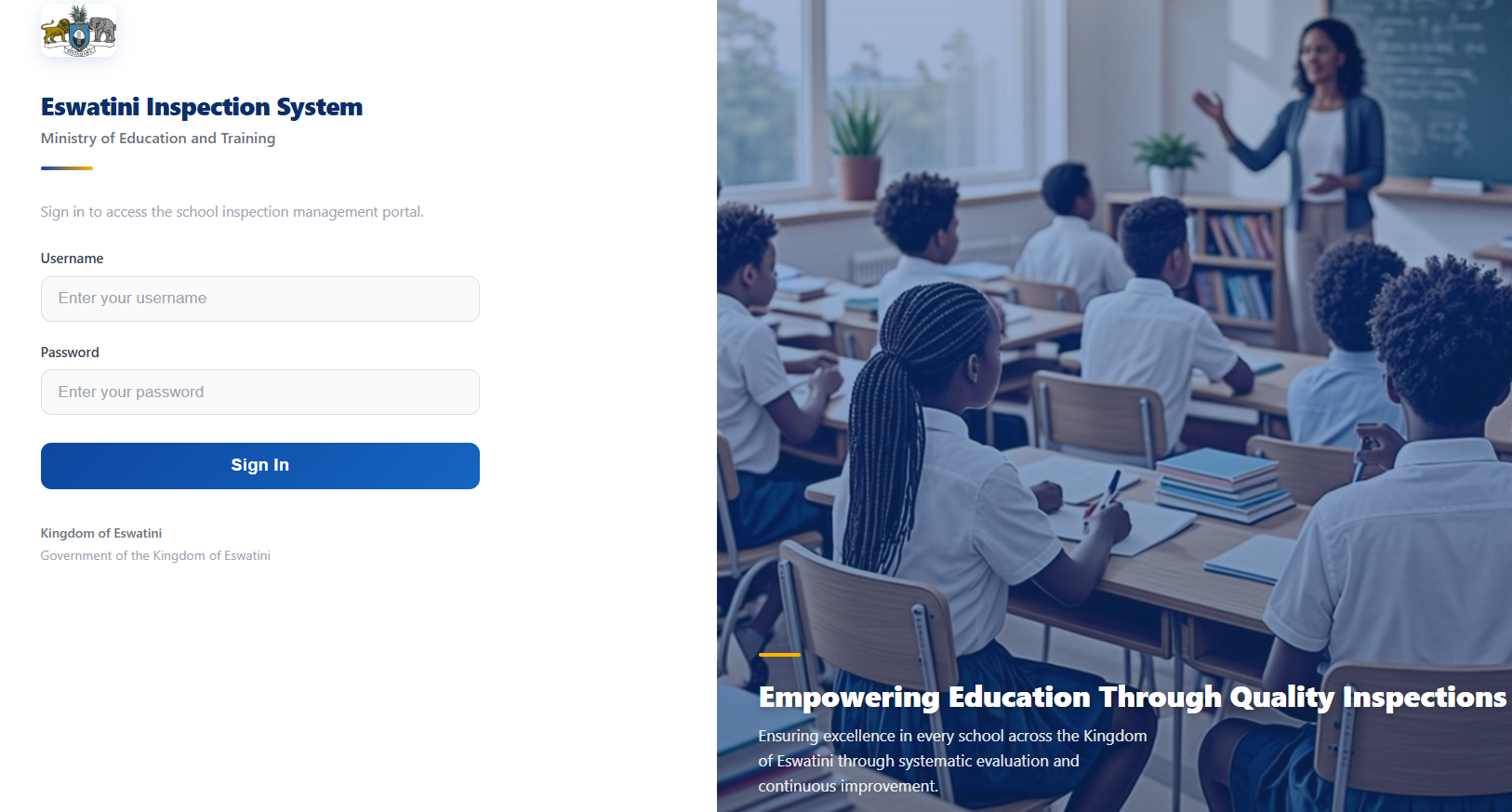
The inspection system is accessible online. All inspections, reports, and communication happen through this portal.
System Overview & User Roles
The digital inspection system replaces paper-based inspections with a secure online portal. It connects inspectors, schools, and administrators in a single platform for conducting inspections, submitting reports, and communicating. The system has four user roles:
System Administrator
Manages the entire system — adds school records, manages inspector accounts, edits all website content (CMS), publishes announcements, and oversees all activity. The admin account is pre-created; all other users register themselves.
Chief Inspector
National oversight — views all inspection reports and all communications across every department and region. Read-only access to communication conversations. Does not submit reports.
Senior Inspector / Inspector of Schools
Department-level oversight — views all reports and conversations within their department. Can also conduct inspections and submit reports. Communicates with schools in their department.
Regional Inspector
Conducts school inspections in their assigned region, submits inspection reports with attached documents, and communicates with the schools they inspect. Sees only their own reports and conversations.
School
Receives inspection reports, downloads attached documents, acknowledges reports, and communicates with inspectors via the communication system. Sees only their own school's reports and conversations.
Creating an Account (Registration)
Only the admin account is pre-created. All inspectors and schools register their own accounts through the registration pages. Here's how:
Inspector Registration
Inspectors create their own accounts by following these steps:
- 1 Go to the inspection system login page
- 2 Click the "Inspector Registration" button
- 3 Enter your full name, email, and phone
- 4 Select your role/level: Chief Inspector, Senior Inspector, Inspector of Schools, or Regional Inspector
- 5 Select your department & subject from the dropdown (e.g., Science Department → Biology, or "All Departments" for Chief Inspectors)
- 6 Select your region (or "All Regions" for national oversight)
- 7 Create a password (minimum 6 characters) and confirm it
- 8 Click "Create Inspector Account" — your account is active immediately
School Registration
Schools create their own accounts by selecting their school from the admin-added list:
- 1 The admin must first add the school record (school name, code, region, type) through the admin portal
- 2 Go to the inspection system login page
- 3 Click the "School Registration" button
- 4 Select your school from the dropdown (grouped by region — only unregistered schools are shown)
- 5 The school's code, region, and type are auto-filled for confirmation
- 6 Enter the principal/contact name, email, and phone
- 7 Create a password and confirm it
- 8 Click "Create School Account" — your account is linked to the school and active immediately
Logging In
Steps to Log In
- 1. Go to the inspection system login page
- 2. Enter your registered email address
- 3. Enter your password
- 4. Click "Sign In"
- 5. You will be redirected to your portal dashboard based on your role
After Login
- Admin → Admin Control Panel
- Inspector → Inspector Portal (level-aware)
- School → School Portal
Submitting an Inspection Report (Inspectors)
Regional Inspectors, Senior Inspectors, and Inspectors of Schools can submit inspection reports. Here's the process:
Navigate to Submit Report
After logging in, click "Submit Report" in the sidebar navigation.
Select the School
Choose the school you inspected from the dropdown. For Regional Inspectors, the list is filtered to your assigned region. For Senior Inspectors, all schools are available.
Enter Report Details
Fill in the report title, inspection date, term (Term 1/2/3), and year. These are required fields.
Document Focus Areas
List the areas you inspected (e.g., "Curriculum coverage, Teaching methodology, Learner assessment, Infrastructure").
Write Findings
Record your detailed observations from the inspection — what you saw, what worked well, and what needs attention.
Write Recommendations
Provide specific, actionable suggestions for improvement. Number them for clarity (e.g., "1. Restock laboratory chemicals. 2. Schedule ICT training.").
Set Overall Rating
Choose the overall rating: Excellent, Good, Satisfactory, or Needs Improvement.
Attach a Document (Optional)
Upload a PDF or Word document with the full written report. Max file size: 25MB. The file is securely stored and only accessible to the school and oversight inspectors.
Submit
Click "Submit Report". The report is instantly sent to the school. If the school has a registered account, they receive an automatic notification message via the communication system.
Viewing & Acknowledging Reports (Schools)
When an inspector submits a report, the school receives it automatically. Here's how schools view and acknowledge reports:
Check the Dashboard
After logging in, the school dashboard shows the latest inspection report and a count of reports received. A notification appears in the communication if a new report arrives.
Go to Inspection Reports
Click "Inspection Reports" in the sidebar to see all reports submitted for your school.
View a Report
Click "View" on any report to open the full details — focus areas, findings, recommendations, rating, and status.
Download the Document
If the inspector attached a PDF/Word document, click the download button to save it to your computer.
Acknowledge the Report
For reports with status "Submitted", click "Acknowledge Report". You can add an optional note (e.g., "Report received and reviewed. Improvement actions noted."). The status changes to "Acknowledged".
Respond via Communication
Use the Communication system to ask the inspector questions about the report or discuss the recommendations.
Communication via Communication
The Communication system is a built-in messaging platform for secure communication between inspectors and schools. All messages are logged and visible to oversight inspectors (Chief and Senior).
For Schools
- Go to Communication in the sidebar
- Select an inspector from the contact list
- View the conversation history
- Type a subject and message, optionally attach a file
- Click Send Message
For Inspectors
- Go to Communication in the sidebar
- Select a school from the contact list
- View the conversation history
- Reply with a subject, message, and optional attachment
- Chief/Senior Inspectors can view all conversations in their scope (read-only oversight)
Features
- Unread message count badges
- File attachments (PDF, documents, images)
- Auto-notifications when reports are submitted
- Messages marked as read automatically
- All conversations logged for accountability
Admin Management & CMS
The admin has full control over the system. Key admin functions include:
Website Content (CMS)
Edit text on every public page — Home, About, Inspection Process, Schools, News, Downloads, Contact. Changes appear instantly without touching code.
Manage Schools
Add school records (name, code, region, type, principal). Schools then register their own login accounts. Edit or delete school records as needed.
Manage Inspectors
View all registered inspectors grouped by department. Add inspector accounts manually if needed. Inspectors can also self-register.
Announcements
Publish news, events, and notices on the public website. Pin important announcements to the top. Edit or delete as needed.
All Reports
View every inspection report submitted across all schools. Read-only access with full details and download links.
Activity Log
Track all actions in the system — logins, report submissions, message sends, content edits, and more. Full audit trail.
Ready to start?
Access the digital inspection system now to register your account, log in, and begin conducting or receiving inspections.